Showing posts with label Facebook. Show all posts

Thursday, 3 May 2012

List Of Things To Add In Your Facebook Page


Facebook Pages is the best way to promote your brand on Facebook. Almost every blogger has a Facebook page and he is promoting his blog via his Facebook Page. But people forget to customize it. And so here are a list of things that you can add to your Facebook page to make it more attractive. In order to follow this article you need to know how to create custom tabs to your Facebook page. Here is a good video from Mr.Amit Agarwal which explains you on how to add a custom tab to Facebook.


List Of Things To Add To Your Facebook Page


1. Twitter :

Twitter is the best social network standing next to Facebook. You must have a Twitter account to show your Tweets to the world. To make it more wider why dont you add a Twitter Tab to your Facebook Page. It is really good to add your twitter tweets to your Facebook page. Use the following code to add it to your Facebook Page.

<script charset="utf-8" src="http://widgets.twimg.com/j/2/widget.js"></script>
<script>
new TWTR.Widget({
version: 2,
type: 'profile',
rpp: 4,
interval: 30000,
width: 250,
height: 300,
theme: {
shell: {
background: '#333333',
color: '#ffffff'
},
tweets: {
background: '#000000',
color: '#ffffff',
links: '#4aed05'
}
},
features: {
scrollbar: false,
loop: false,
live: false,
behavior: 'all'
}
}).render().setUser('Your Username').start();
</script>

Replace Your Username with your Twitter username and add it to your Facebook Page.

2. Contact Form :

Most of the users who visit your page would like to contact you if your page is good. So why dont you make it easier for them to contact you. So better add a contact form to your Facebook page. Use the following website to create a contact form to your Facebook page.

123contactform

Complete customizing your contact form and finally in the publish tab click on "Embed Tab" and you can get the HTML code using which you can add it to your Facebook page.

3. Your Feeds :

Eventhough you add the links to all your post on your Facebook page timeline you need to drag your Feeds so that your followers so that they can see the titles of your recent post and it would increase the chance for them to visit your blog.

To do so login to your Feedburner account. Navigate to Publicize > Buzz Boost and there customize the settings for the appearance of your feeds and then get the HTML code using which you can add it to your Facebook Page.

4. Forums :

Why dont you make it easier for your followers to ask their questions to the group and get their answers quicker ? Adding a forum to your Facebook page may be a bit complicated. And the tutorial would be a bit long and so I would write a separate article which would explain you on how to add a forum to your Facebook page.

5. Adding Group Chat :

Usually this is available only for Facebook groups. But why dont we make it available for pages too. Here is an application named as Clobby which would help you in doing this. It would just look like that of a Facebook Group's Chat.

Take a look at this application here.

6. You Tube :

Add a list of all your You Tube videos to your page. There is no other go you need to add it individually for each and every of your video. I would recommend you to add a bigger size so that your users are easily able to view the video right from your page without entering You Tube. Dont congest the page with stuff like ads and others. This would irritate your followers. Make it as clean as possible.

7. Welcome Tab :

This should have been the first but unfortunately the last. This welcome tab is much essential for each and every page. This should be like that of the About Page on your blog or website. Add your logo to it. Add a like box and a warm welcome message. Make sure it goes that much attractive that it tends users to like your Facebook page.

I hope I have given you guys a whole bunch of things that could be added to your Facebook page. Make sure you add all of those mentioned above. This is sure to boost your fans on Facebook. Happy Facebooking ! :)

Tuesday, 6 September 2011

The 4 Best Tools for Tracking Social Media


THIS IS A GUEST POST.

Most people have learned that in order to succeed in today’s market, web promotion is essential to increasing the profits from their business. First, most of us learned to create websites that used SEO to attract more traffic. Then we soon learned that analytics could be used to track tour results. Today, one of the greatest tools we have as marketers is social media both to speak with our customers and also to advertise our businesses. Now businesses need to learn to use analytic tools to track those results also.

Many of us have pondered how we can tack on this monumental task of tracking of social media results. Here are a few tools you should look into if you want to find a way to track your social media success.

1. Radian6

My very favorite program is Radian6 if you can afford it. The bots used by Radian6 seem more reliable than manyof the other programs. Users can view comments about their chosen search term in near real time. The programwill also send real time alerts and also allows users to graph the number of posts, comment count, view count,vote count, Twitter followers, inbound links, and unique sources. Over half of Fortune 500 companies use thisprogram to keep track of information on their companies and brands.

2. Media Analysis Platform by Sysomos

The great thing about Media Analysis Platform is the tools available to search by particular criteria. For example,users can search by keywords or by a particular date. Media Analysis Platform allows users to use boolean searches. This would be a better with the addition of a workflow system. Like Radian6 this can be a rather costly tool. This program can be added with Heartbeat for best results, but adds greatly to the cost.

3. TwentyFeet

The great news about this site is that it offers its service online, so there are no downloads. The pricing is very low and the user only pays for the tools they use. This system does a great job of allowing users to find many different tools and have access to them all in one place.

4. BrandWatch

Features a great drag and drop menu. The best thing about BrandWatch is its ability to find keywords based on their proximity to other words. Another great feature is that it allows users to track how influential the people making the comments are. Some of the tools on BrandWatch are not overly user friendly, meaning the program takes a while to learn but once you master it, there is a lot you can learn.

About the Guest author...

Jennifer Daly is an Internet marketer and blogger. She is also a self-confessed Twitter and Facebook addict. She writes on a variety of topics and is a contributing writer for Amazing Domains, a site which sells a variety of domains ranging from shopping and fitness to automobile and kitchen domains. She also enjoys staying up to date with the latest Internet marketing trends and tools.

Thursday, 18 August 2011

How to create a facebook application for your Blog.

Facebook is the worlds greatest social network and it has more than 750 million users. So it is necessary for a blogger to create a facebook page that he will surely have. And how about creating a facebook app. Yes guys. You might have seen and you might have used many many apps as a facebook user. Creating a facebook app is really easy and that you should have some basic knowledge on web designing languages. And if you have a good knowledge you can easily create really great apps. If your becomes famous then facebook might pick you up for an internship. But lets not go that complex. Now we will be creating an app that will let users to see your blogs feed and they will also be able to subscribe to it. So lets get started :

1. Lets assume that you have a facebook account. Just login to it and navigate to the following URL :

http://developers.facebook.com/apps

2. Now in this page click the "Create a new app" button in the top right.


3. Enter the name of your app. Accept to the terms and conditions. Click on the Continue button.

4. In the following page enter all the details accordingly.

5. Now open up your notepad. You will have to write some codes for showing up your feed.

6. And before that you have to get your Buzz Boost  codes. For that do the following
  • Login to your feed burner account where you have burnt your feed
  • Open up your feed.
  • Navigate to Publicize > BuzzBoost
  • And add your preferences there and get the code.
  • Set the number of posts to be showed as 10 so that it looks good in your facebook page.
7. Now that you have got your Buzz Boost code. Now open up your notepad and enter the following codes .


<html>
<body>
<style>
.burner{
font-family: 'Trebuchet MS';
border:3 px dotted #CCCCCC;
font-size:12px;
color:#000000;
font-weight:normal;
text-align:left;
padding:2px;
margin:4px;
}
.burner a{
font-size:17px;
color:#686868;
font-weight:bold;
}
.burner a:hover{
color:#CC0000;
}
.burner a:visited{
color:#686868;
}
</style>
<div style="float: left; width: 500px;
  margin: 5px; padding: 5px; border: 1px solid black;">
<div class="burner">
BUZZ BOOST CODES HERE
</div></div>
FACEBOOK LIKE BUTTON HERE
</body>
</html>

8. Replace "BUZZ BOOST CODES HERE" with your Buzz Boost codes and replace "FACEBOOK LIKE BUTTON HERE" with your facebook like button.

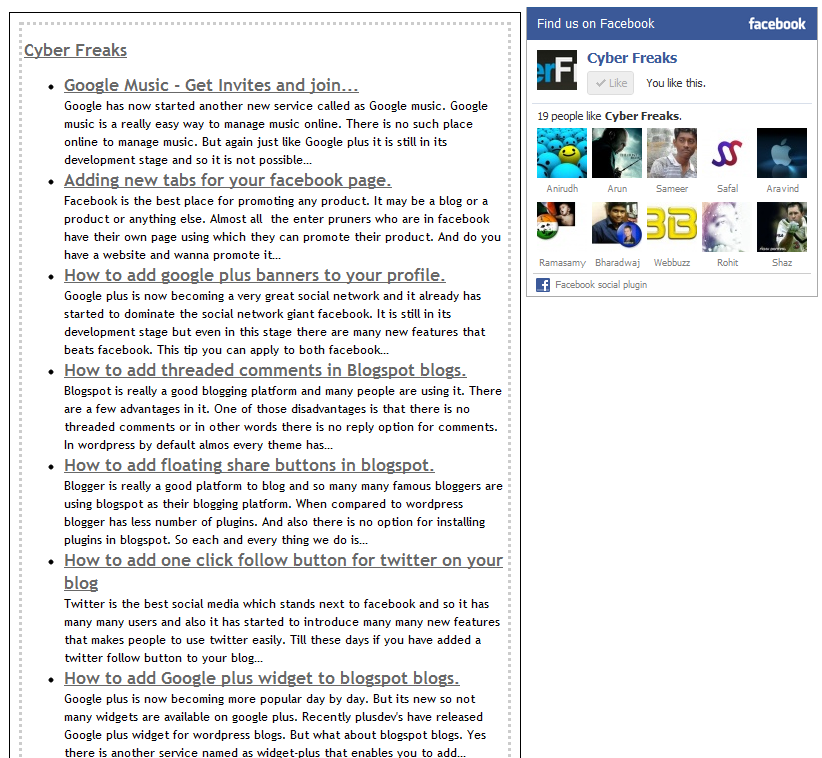
9. You can also add other widgets that you wanna add to your facebook app by just adding the HTML code below the facebook like button code. The appearance for the above codes will look like the following :


10. Now save the document with a .html extension.

11. Upload the file anywhere online. And get the URL.

THINGS TO REMEMBER WHILE UPLOAD A FILE ONLINE :

1. I have uploaded my files in my3gb.com
2. Go to my3gb.com and create an account.
3. Go to your control panel and from there to your file manager.
4. Click on create a new directory and name it. (i have named as Cyber Freaks)
5. Rename your HTML document as index.html and upload the file into that directory.
6. Now open that file from my3gb.
7. Your file will be redirected to an URL as follows :

http://example.my3gb.com/Your%20Directory/index.html

Replace Example with your domain that you got while registering with my3gb and replace "Your" with the first name of your directory and "Directory" with the second name of your directory. If your directory does not have any second name then remove "%20Directory".

Do all modifications and note down that URL.

12. Now come back to facebook.

13. Click on the "On Facebook" link on the left sidebar.

14. In the page you will be asked to add some details. Enter the details as follows.

Canvas Page : Your own preference

Canvas URL : The URL of your hosted HTML file that you got in step 3.6. (Dont forget to add trailing slashes)

Secure Canvas URL : The URL of your hosted HTML file that you got in step 3.6. (with https:// instead of http://. If this does not work then leave that area blank)

Tab URL : The URL of your hosted HTML file.

Secure Tab URL : The URL of your hosted HTML file that you got in step 3.6.  (with https:// instead of http://. If this does not work then leave that area blank)

And now save the changes. And thats it your app is ready now. Now lets add it to your facebook fan page.

1. In the page in the bottom of the left side bar you will see a link called as "View application profile page"

2. In the bottom of the left sidebar you will see a link as "Add to my page" Click on that and a list of your pages will appear. Click on the page that you want your application to be added and click close.

And thats it you have created your app and added it to your page. Any queries post them as a comment and enjoy blogging !! :)

Thursday, 11 August 2011

Adding new tabs for your facebook page.


Facebook is the best place for promoting any product. It may be a blog or a product or anything else. Almost all  the enter pruners who are in facebook have their own page using which they can promote their product. And do you have a website and wanna promote it on facebook ? Here is a great way to add new tabs to your facebook page and it is powered by google ! And this is a large tutorial and just see below to get started.

1. Lets assume that you have a facebook account and a google account.

2. Login to your facebook account and search for developers in the search box in the header.

3. Click on the first result in the search or you can alternatively go to this URL. And you will be redirected to a page where you can create new apps.

4. Click on the create new app button in the top right of the page.

5. Enter the name of the tab that you wanna create in your facebook fan page and accept to the terms and click on the continue button. Enter the captcha and continue.

6. In the description field write the description of your tab. Upload an icon (the best one to choose is your blog's favicon.) And leave the other fields to defaults and click on the save changes button.

Now Open a new tab and navigate to google sites.

1. Login with your google account.

2. If you are using sites for the first time click on the Create site button in the following page.

3. In the resulting page you will be asked to enter all your details like entering a name for your site and the url and other details.

4. Expand the choose theme area and select the blank template.

5. Enter the captcha and click on the create a new site button.

6. Now you will be taken to the page where you can edit your website and do such other things.

7. In the top right you will see more actions click on that and enter the manage site option.


8. Now in the left sidebar click on general settings.

9. Now in the page de-select the show site name in the top of the pages option. We do this because you dont want the name of this site on your facebook page right. And click the save button.


10. Now click the site layout in the left sidebar and click on change site layout. Change the width to 500 px (because the width of facebook pages are only withing 550 px) and disable header and sidebar. Click Ok and save the changes.


11. Now below you will see something named as customize system footer links. A new popup will open and enable all the options in it. Click ok and save the changes.


12. Now that you have completed editing your settings and so click on the Return to site link in the left side bar.

13. You will be taken to the page that you got at the first after choosing the name and theme of your site.

14. In the top right you will see a button to create a page for your site. Click on that.

15. Enter a name of your page. In this example let it be Contact Us.

16. Let the other options to the default and  click on create page button.

17. Add the content that you want to appear on the facebook tab and save the page.

18. Now again click on More Options > Page Settings and disable all the four check boxes there.

19. After saving the changes copy the URL of the page to clipboard.

Back To Facebook.

1. You must have opened google sites in a separate tab leaving facebook aside. Now again go back to the tab where you have opened developers in facebook.

2. Click on the "On facebook" link in the left side bar.


3. Now there in the page you will find the following settings to be edited.

Canvas Page : Any unique link to this app.
Canvas URL : The URL that you copied from Google sites (Note : Remove https and replace it with http)
Secure Canvas URL : The URL that you copied from Google sites (Note: Dont remove https)
Tab URL : The same as Canvas URL
Secure Tab URL : The same as Secure Canvas URL.

Dont forget to add trailing slashes to all the fields except for the canvas page field.

4. After editing the above options your page should look something like the below :


5. Now save it.

Implementing In Your Page.

1. In the same page in the left sidebar you will find a link called as "View app profile page". Click on that.

2. Now again in the page in the bottom of the left sidebar you will find a link named as "Add to my page" Click on that.

3. Now you will find a list of pages that you admin. Click on the page where you want it to appear. And thats it. You are done.

If you wanna add more tabs follow the whole process again again until you are satisfied.

Hope you guys enjoyed the tutorial. Any queries just comment below. Or subscribe if its good...

Saturday, 23 July 2011

How to get back old facebook profile view ?

Facebook has recently changed its theme. Most of the people think that its awkward. In the past few weeks facebook is making some constant changes as its competitor Google plus is evolving like anything. So facebook has changed its theme and introduced video chat and even changed the appearance of the chat system. And even apps were created that supported hangouts for upto 20 friends [Take a look at my previous post]. But some of these changes are not good. So some of them might try to roll it back to the old one. Here is a tweak to change your facebook profile theme to the older one.

Note that in this tutorial you will be deactivating your account and reactivating it. If you are an admin of any page make some one else as the admin and again ask them to make you as the admin when you reactivate the account because you will your admin power if you deactivate and reactivate your account.

1. Fire up your browser and login to your facebook account.

2. Click on the the accounts link on the top right and navigate to your account settings.

3. At the bottom most you will find Deactivate link. Click on that

4. Now facebook will ask the reason why you are deactivating your account.

5. There will be a list of options that they give by default. Click on the option that says "This is temporary and I'll be back".

6. DONT fill any other options.

7. Now facebook will give you a captcha to resolve and will ask for your password. Enter both and you will now be logged out of your facebook account with a message saying that "We hope you will be back soon".

8. Wait for 10 - 20 minutes and login to your account with the same username and password that you used. Now your account will be re-activated and you will find that your profile will have the old good theme and there will be no more irritating floating top bars.

Hope I helped in getting back your old facebook theme. Post your issues and views as comments...

"Social Hangouts" unevils group video chat for Facebook.

Google plus is now emerging as a huge competitor for facebook and so facebook is now trying to do some changes in facebook so that the users dont migrate from facebook to google plus. There are lots of advantages in Google plus. The most important among them is the group video chat or the hangouts. Facebook has introduced video chat with Skype but the disadvantage is that it is only one-one video chat. But in hangouts upto 10 members can join the chat. But are you a crazy fan of facebook. Then here comes a new application for facebook that helps you to do a hangout with your friends.

1. Lets consider that you already have a facebook account. Login to your facebook account and go to this page.

2. Click on the "Go to App" link on the top.


3. And now you will be asked for permission to access the application. Click the allow button.

4. Now you will be taken to the application page. There click on the Start Hangout link the middle.

5. Now click the Invite Friends button in the top right and invite your friends whom you wanna video chat with.

The facebook's skype powered video chat failed to create an impression in the minds of the users. But however this application is getting some fame and popularity and so which makes facebook stand in the fight against google plus.

The advantage of using this service over google's hangouts is that it supports upto 20 users to chat at the same time and so facebook comes up in this fight. But this is not an official product of facebook.

So facebook is making even more changes most of which are awkward like those floating top bar in the home page and that stupid chat system.

Hey facebook try to make some good changes and not like those of that awkward changes.

Hope this was an useful tip. Post your reviews as comments.....